Introduction
A touchscreen control system combines a touch-sensing layer, controller electronics, HMI software, and machine-control logic to turn an operator's contact into a command.
Press operators struggle with oil mist, vibration, gloved hands, and safety architectures that consumer screens were never designed to handle. The right control depends on the environment, the operator's tasks, the safety architecture, and the equipment being controlled. Screen type and size matter far less than those factors.
This article covers how touch input works, the main sensing technologies, industrial HMI design, and how to select a system for metal stamping and pressroom applications.
Key Takeaways
- The sensor detects contact; the controller interprets it and passes it to the HMI.
- Capacitive, resistive, infrared, and SAW screens each trade off glove use, clarity, and contamination tolerance.
- Touchscreens improve visibility but never replace e-stops, guarding, or brake monitoring.
- Test gloves, contamination, integration, diagnostics, and upgrade paths before buying.
What Is Touchscreen Input and How Does It Work?
Touchscreen input detects where and how an operator touches a display, then converts that contact into a digital event: selecting a menu, entering a value, acknowledging an alarm, or changing a mode.
The Components, and Why They Aren't Interchangeable
- Display: shows the interface.
- Touch sensor: detects contact.
- Touchscreen controller: converts sensor readouts into coordinates.
- HMI software: maps coordinates to on-screen controls and talks to the PLC or control system.
- Machine-control hardware: decides what the machine actually does.
Rockwell describes an HMI as an interface for interacting with industrial systems, machines, and devices. The controller is neither the HMI application nor the PLC.
From Touch to Machine Response
- The sensor detects a touch.
- The controller identifies its location and characteristics.
- The HMI maps it to an on-screen control.
- The control system decides whether the requested action is permitted.

Controllers do real work along the way. A Microchip maXTouch part, for example, handles calibration, noise cancellation, and filtering, then reports touch ID, X/Y position, and scan time to the host. Some products also reject large palm-like contacts. Those are product features, not universal ones.
Screen Control Versus Machine Function
Tapping "Setup" or acknowledging a diagnostic message is a request. The touchscreen does not decide machine safety or operating authorization. Interlocks, modes, and permissions in the control system do.
Touch Versus Physical Controls
Touchscreens offer dynamic, context-specific screens. Physical buttons give tactile feedback, work well with gloves or poor visibility, and suit dedicated emergency functions. Most pressrooms need both.
Types of Touchscreen Technology and Input Methods
The right technology follows the operating environment and the input behavior you need.
| Technology | How it detects touch | Pressroom considerations |
|---|---|---|
| Projected capacitive | Finger changes electrode capacitance | Sensitive, clear, multi-touch; glove, liquid, and EMI performance depend on tuning and construction |
| Resistive | Pressure joins conductive layers | Works with fingers, gloves, styli; typically single-touch; some models not rated for direct sunlight |
| Infrared | Interrupted beam grid across a frame | Gloved use and multi-touch possible; needs a frame; check model specs |
| Surface acoustic wave | Touch absorbs waves crossing the glass | Clear glass, gloved input; wet hands and droplets can interfere |
Capacitive
Capacitive screens suit operators who want responsiveness and multi-touch. In a shop, check ordinary-glove compatibility, conductive contamination, and EMI. Siemens, for instance, says its Unified Basic panels detect gloves under 2 mm thick in most cases, and tells users to test their actual gloves. Conductive liquid can also lock a screen.
Resistive
Resistive screens accept almost anything that applies pressure. The tradeoffs are lower optical clarity and, usually, no multi-touch. Verify claims against current manufacturer documentation for the exact model.
Infrared and SAW
Infrared systems use a frame of LEDs and receivers, so bezel size matters. SAW offers coating-free glass, but Elo documents interference from wet hands. Neither technology name tells you a finished panel's environmental qualification.
Input Methods
- Single-touch: suits discrete machine commands.
- Multi-touch and gesture: helpful for navigation and charts, risky where accidental activation is possible.
- Stylus: useful for precision, easy to misplace on a press.
A Selection Framework
Weigh these factors for your press line:
- Gloves, moisture, oil, and dust
- Vibration and cleaning procedures
- Lighting and required precision
- Screen size and software compatibility
- Replacement needs and lifecycle cost
No single technology wins every category.
How Touchscreen Controls Work in Industrial HMIs
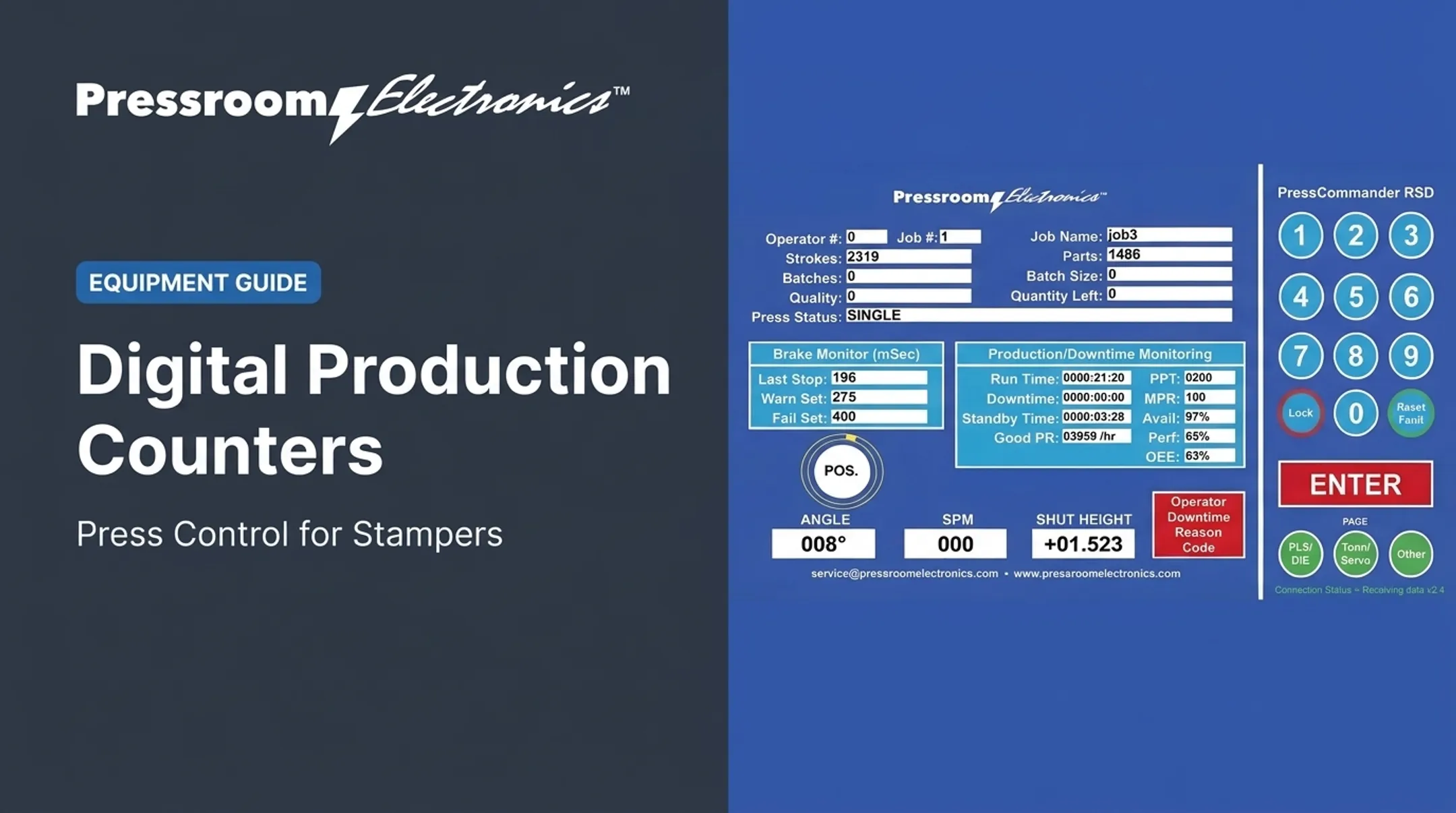
In a pressroom, a touchscreen HMI displays machine status, guides setup, shows production data, accepts approved parameters, presents alarms, and opens diagnostics.
Visibility and Productivity
Clear screens make machine state, downtime causes, and performance easier to see. Wintriss's ShopFloorConnect system lets operators pick downtime reasons on a touchscreen.
A Kaba Ilco case study reports production gains of up to 33% after the plant replaced paper reporting with touchscreen data collection. That is a vendor-attributed, system-level result, not a touchscreen-only gain.
Working With Press Controls
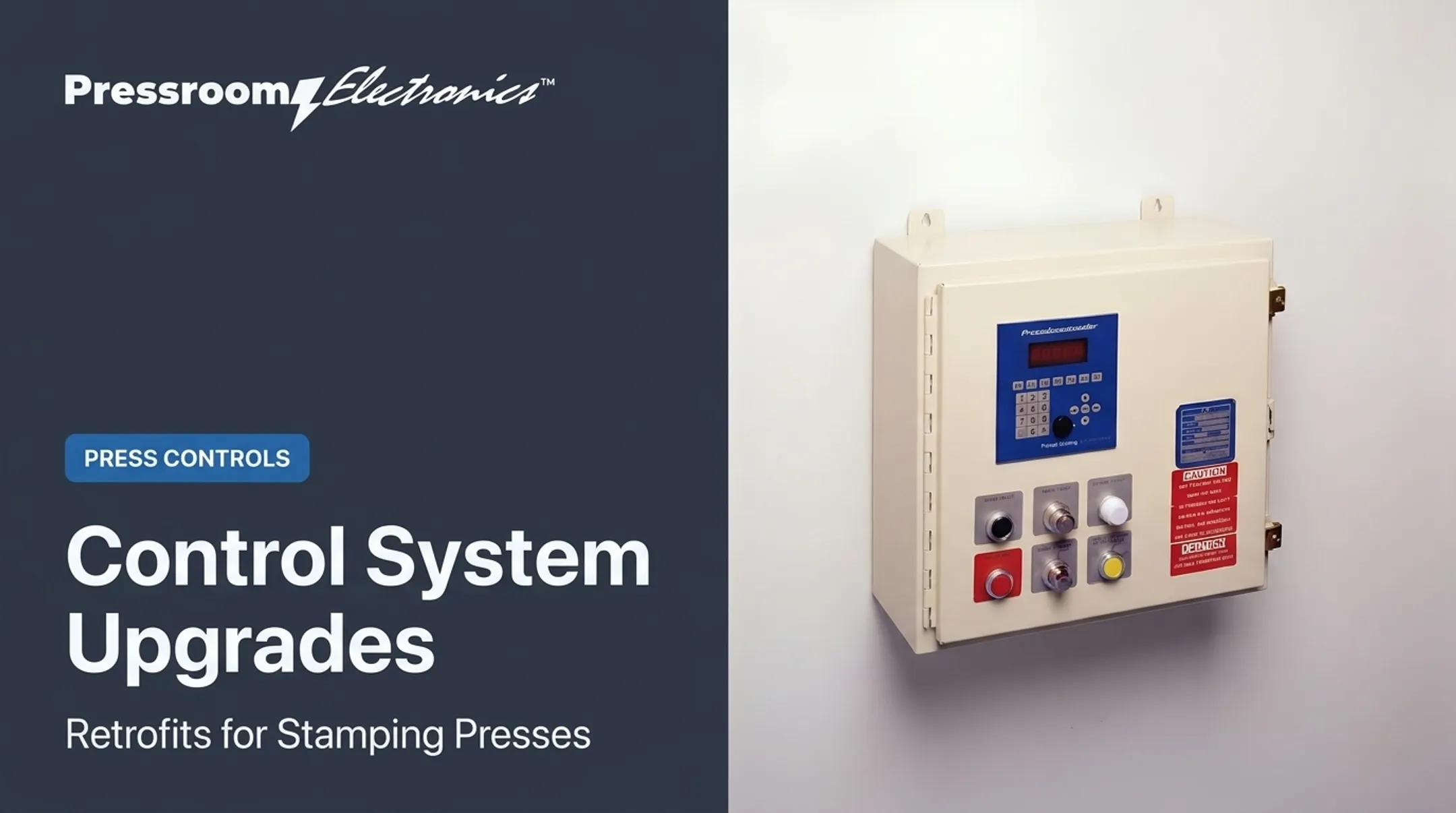
Depending on design, the interface may talk to control boards, sensors, clutch/brake controls, brake monitoring, die protection, automation, or monitoring systems. Defined permissions, operating modes, interlocks, alarm logic, and validation keep a screen command from bypassing a safeguard.
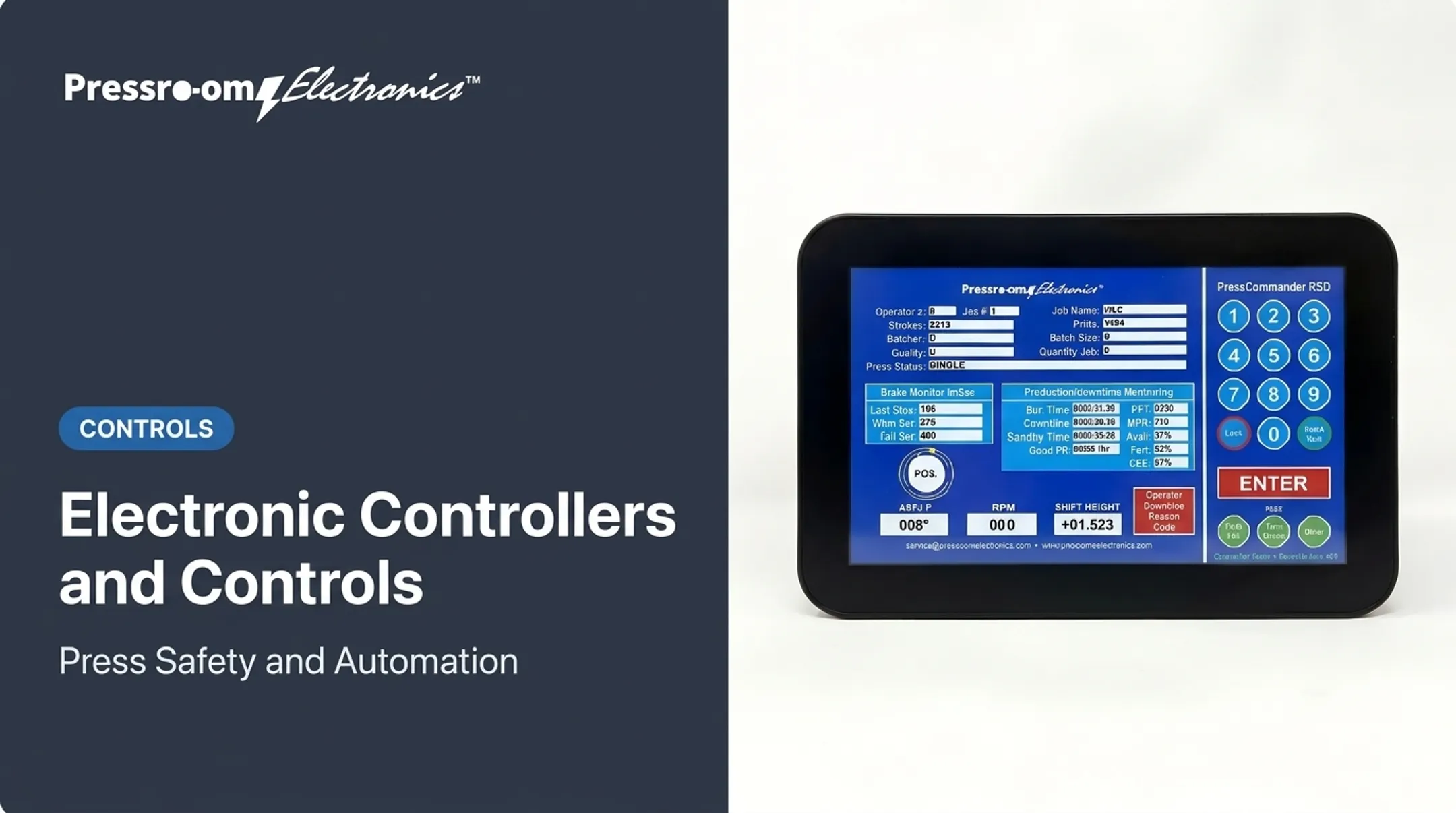
Pressroom Electronics' PressCommander shows one approach. Its optional 10.1-inch color touchscreen (Part #39-151) supports timers, counters, die protection, tonnage monitoring, programmable limit switches, and downtime monitoring.
It offers 20 user-programmable downtime codes, set by touch or by a machine-circuit signal. The company also builds custom programs at the factory for unique applications.
Where the HMI Ends and Safety Begins
A touchscreen is not a substitute for emergency stops, physical guarding, two-hand controls, light curtains, safety mats, or brake monitors. OSHA's 1910.217 requires, among other things:
- A red stop control that immediately deactivates the clutch or applies the brake
- Concurrent two-hand control where applicable
- Control reliability and brake monitoring where required
Nothing in those provisions suggests ordinary on-screen buttons meet them. ANSI B11.1 and B11.19 also apply. Confirm current requirements against the specific press application.
PressCommander follows this split. Its e-stop and light-curtain inputs and safety relays are separate from the display, and the touchscreen is optional.

Diagnostics and Maintenance
Alarms, fault histories, reason codes, and utilization trends help teams move past symptom-based troubleshooting toward root causes. PressCommander's diagnostic display reports faults such as pressure-switch problems, failed output relays, and rotary-cam misadjustment in plain English.
Designing Effective Touchscreen Controls for Operators
Core Design Principles
- Readable text and high-contrast status indicators
- Touch targets sized for fingertips (Siemens' template uses a 40 x 40 pixel minimum; Rockwell advises fingertip-sized zones)
- Logical navigation and consistent terminology
- Always-visible machine mode
- Avoid unnecessary screen changes
Standards such as ISA-101 (HMI design) and ISA-18.2 (alarm management) offer deeper guidance.
Safe, Deliberate Actions
- Confirm consequential commands, as Rockwell recommends
- Separate status displays from selectable controls
- Limit parameter access by permission
- Prioritize alarms; don't rely on color alone
- Give operators an obvious way to recover from a wrong selection
PressCommander's RUN mode shows the idea: operators can clear counters and reset die-sensor faults, but changing parameters requires PROG mode, a password, and a supervisory key.
Real Operating Conditions
Account for real shop-floor conditions:
- Gloves, oil, and vibration
- Glare, viewing angle, and cleaning
- Reach, fatigue, and training
Keep physical controls where immediate tactile feedback matters. In PressCommander's operator stations, for example, the emergency stop is a red mushroom button, not a screen element.
How to Choose Touchscreen Input for a Pressroom
1. Start With Operators and Tasks
Identify who uses the screen and for what: setup, production, maintenance, inspection, or troubleshooting. Note which actions need speed, precision, confirmation, or role-based access.
2. Evaluate Environment and Hardware
Compare technologies against the conditions on your floor:
- Enclosure rating, contamination, moisture, and cleaning chemicals
- Temperature, vibration, and impact risk
- Gloves, lighting, and expected service life
NEMA and IP ratings are not interchangeable, and a front-side-only rating won't cover every exposure.
3. Confirm Compatibility and Support
- Communication drivers and PLC family (an Ethernet port alone isn't a compatibility spec)
- Calibration, alarm handling, and data logging
- Spare parts, updates, and remote or factory upgrades
- Training and vendor support
- Cybersecurity: NIST SP 800-82r3 recommends segmentation, least privilege, and testing patches before deployment
Networking details matter. PressCommander's remote touchscreen, for example, needs the Ethernet option, and wired Ethernet is preferred over Wi-Fi.
4. Validate Before Rollout
Test representative operators and tasks on the actual press or a realistic setup. Cover:
- Normal operation and setup changes
- Alarms, error recovery, and loss of communication
- Glove use and cleaning
When tying touchscreen input into existing clutch/brake controls, monitoring, guarding, automation, or a legacy mechanical press, consult a press-control specialist. PressCommander must be installed by qualified personnel only.

Frequently Asked Questions
Which touch screen technology is best?
It depends on the application: glove use, contamination, required precision, multi-touch needs, durability, and integration. No single technology wins everywhere.
What are the three main types of touchscreens?
Capacitive, resistive, and infrared are commonly listed. Capacitive senses field changes, resistive senses pressure, and infrared senses broken beams. Industrial systems also use surface acoustic wave.
What controls the touch screen?
The touchscreen controller reads sensor signals and reports touch location and events. The operating system or HMI software maps that input to an authorized action.